Offering configuration
Actions via API
Endpoints
This configuration adds a navigation menu to the resource, providing quick access to related services. For SSH endpoints (which is mandatory for EFP), clicking the link opens the system's default SSH client. This works out of the box on macOS and Linux; on Windows, you may need to configure a default SSH application first.
Endpoint management is handled through offering actions, similar to software catalog management:
add_endpoint: Add a new endpoint to an offeringupdate_endpoint: Update an endpoint configurationremove_endpoint: Remove an endpoint from an offering
To configure endpoints via the API, use the actions described above on the marketplace-provider-offerings endpoint.
One example:
# Add an endpoint to offering
curl -X POST "https://your-waldur.example.com/api/marketplace-provider-offerings/{offering_uuid}/add_endpoint/" \
  -H "Authorization: Token your-token" \
  -H "Content-Type: application/json" \
  -d '{
    "endpoint_name": "select-your-endpoint-name",
    "url": "add-url-of-an-endpoint"
  }'
Configuring SSH endpoint is mandatory in EFP, but service providers are welcome to publish any other service endpoints, which are available to the end-users.
More information about that is available on Waldur documentation site.
Partitions
Note
Slurm partition configuration must exactly match the values defined in the actual Slurm cluster.
SLURM partitions represent compute partitions in a cluster that can be associated with marketplace offerings. They define resource limits, scheduling policies, access controls, and optionally link to software catalogs for partition-specific software availability.
Partition management is handled through offering actions, similar to software catalog management:
add_partition: Add a new partition to an offeringupdate_partition: Update partition configurationremove_partition: Remove a partition from an offering
These actions are available on the marketplace-provider-offerings endpoint.
To configure partitions via API, please use previously mentioned endpoint and action.
One example:
# Add partition to offering
curl -X POST "https://your-waldur.example.com/api/marketplace-provider-offerings/{offering_uuid}/add_partition/" \
  -H "Authorization: Token your-token" \
  -H "Content-Type: application/json" \
  -d '{
    "partition_name": "gpu-partition",
    "max_cpus_per_node": 64,
    "max_mem_per_node": 512000,
    "max_time": 2880,
    "default_time": 60,
    "qos": "gpu",
    "priority_tier": 1
  }'
Complete list of available parameters.
More information about that is available on Waldur documentation site.
Software catalogs
The software catalog system allows marketplace offerings to expose large collections of scientific and HPC software packages from external catalogs like EESSI. Instead of manually tracking individual software installations, offerings can reference comprehensive software catalogs with thousands of packages.
Available endpoints for software catalogs:
| Endpoint | Description |
|---|---|
| /api/marketplace-software-catalogs/ | View and manage software catalogs |
| /api/marketplace-software-packages/ | Browse software packages within catalogs |
| /api/marketplace-software-versions/ | View software versions for packages |
| /api/marketplace-software-targets/ | View architecture-specific installations |
Software catalog management actions
Offering-software catalog associations are managed through offering actions:
add_software_catalog: Associate a catalog with an offeringupdate_software_catalog: Update catalog configuration for an offeringremove_software_catalog: Remove catalog association from an offering
These actions are available on the marketplace-provider-offerings endpoint.
To configure a software catalog via API, you need to know the uuid of the service offering and catalog.
| Method | Endpoint | Description |
|---|---|---|
| GET | /api/marketplace-provider-offerings/ | List service offerings |
| GET | /api/marketplace-software-catalogs/ | List software catalogs |
Then the software catalog can be linked to the service offering.
# Associate catalog with offering via API
curl -X POST "https://your-waldur.example.com/api/marketplace-provider-offerings/<offering_uuid>/add_software_catalog/" \
  -H "Authorization: Token your-token" \
  -H "Content-Type: application/json" \
  -d '{
    "catalog": "<catalog_uuid>",
    "enabled_cpu_family": ["x86_64", "aarch64"],
    "enabled_cpu_microarchitectures": ["generic"]
  }'
More information about that is available on Waldur documentation site.
Actions via UI
Endpoints
This configuration adds a navigation menu to the resource, providing quick access to related services. For SSH endpoints (which is mandatory for EFP), clicking the link opens the system's default SSH client. This works out of the box on macOS and Linux; on Windows, you may need to configure a default SSH application first.
To configure endpoints:
- Log in to EFP Allocations and select your organisation and then the Service provider dashboard from the top.
- Then Marketplace -> Offerings, select the offering you want to update and then Edit from the top.
This opens the offering edit page, where all offering-related information can be updated. To add/update SSH endpoint:
- Select Public information -> Endpoints from the workspace menu and click Add endpoint from the right.
- Choose a name for the endpoint and add a URL.
- If everything is ready, click Create.
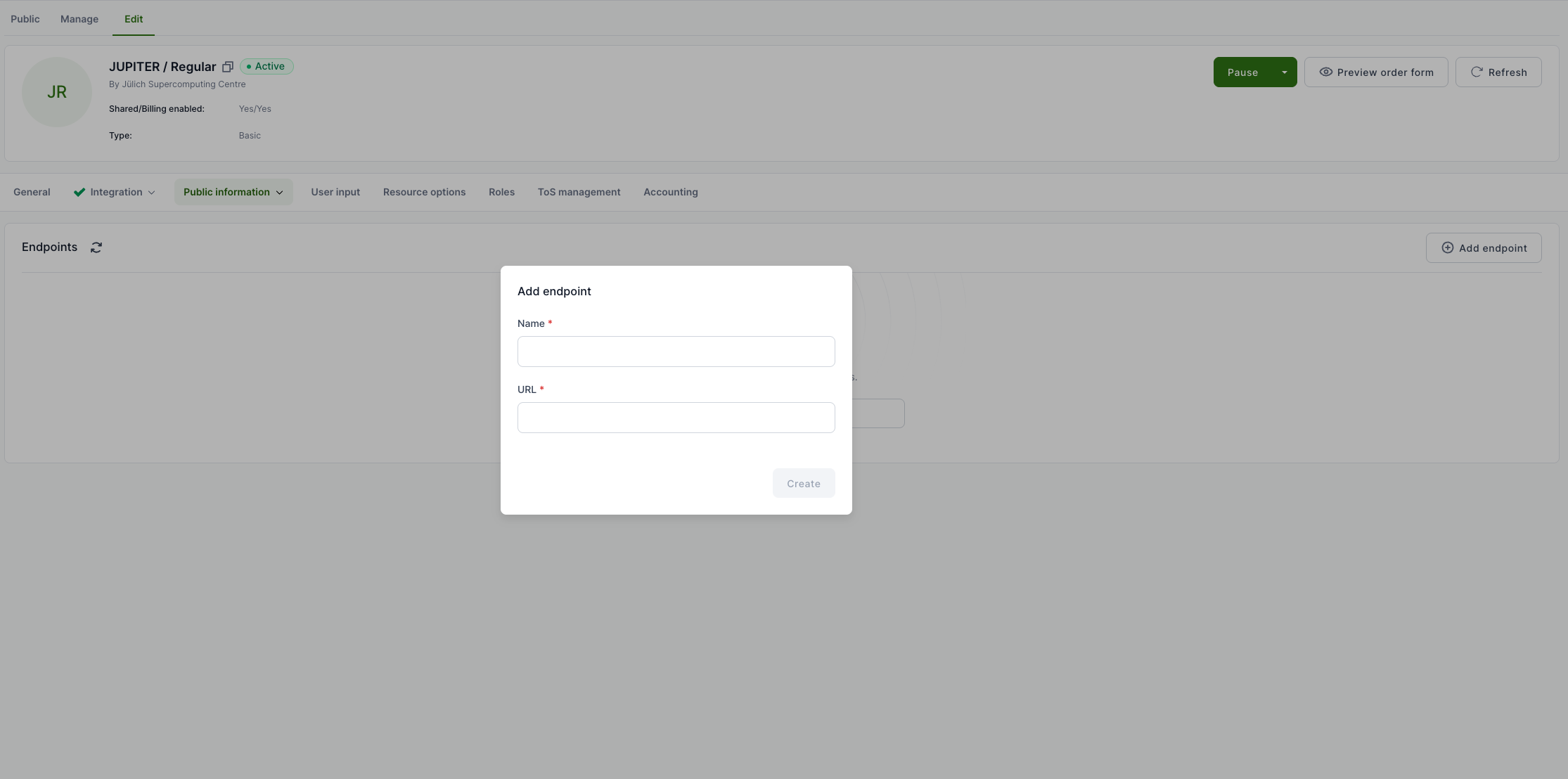
Configuring SSH endpoint is mandatory in EFP, but service providers are welcome to publish any other service endpoints, which are available to the end-users.
More information about that is available on Waldur documentation site.
Partitions
Note
Slurm partition configuration must exactly match the values defined in the actual Slurm cluster.
SLURM partitions represent compute partitions in a cluster that can be associated with marketplace offerings. They define resource limits, scheduling policies, access controls, and optionally link to software catalogs for partition-specific software availability.
To configure partitions:
- Log in to EFP Allocations and select your organisation and then the Service provider dashboard from the top.
- Then Marketplace -> Offerings, select the offering you want to update and then Edit from the top.
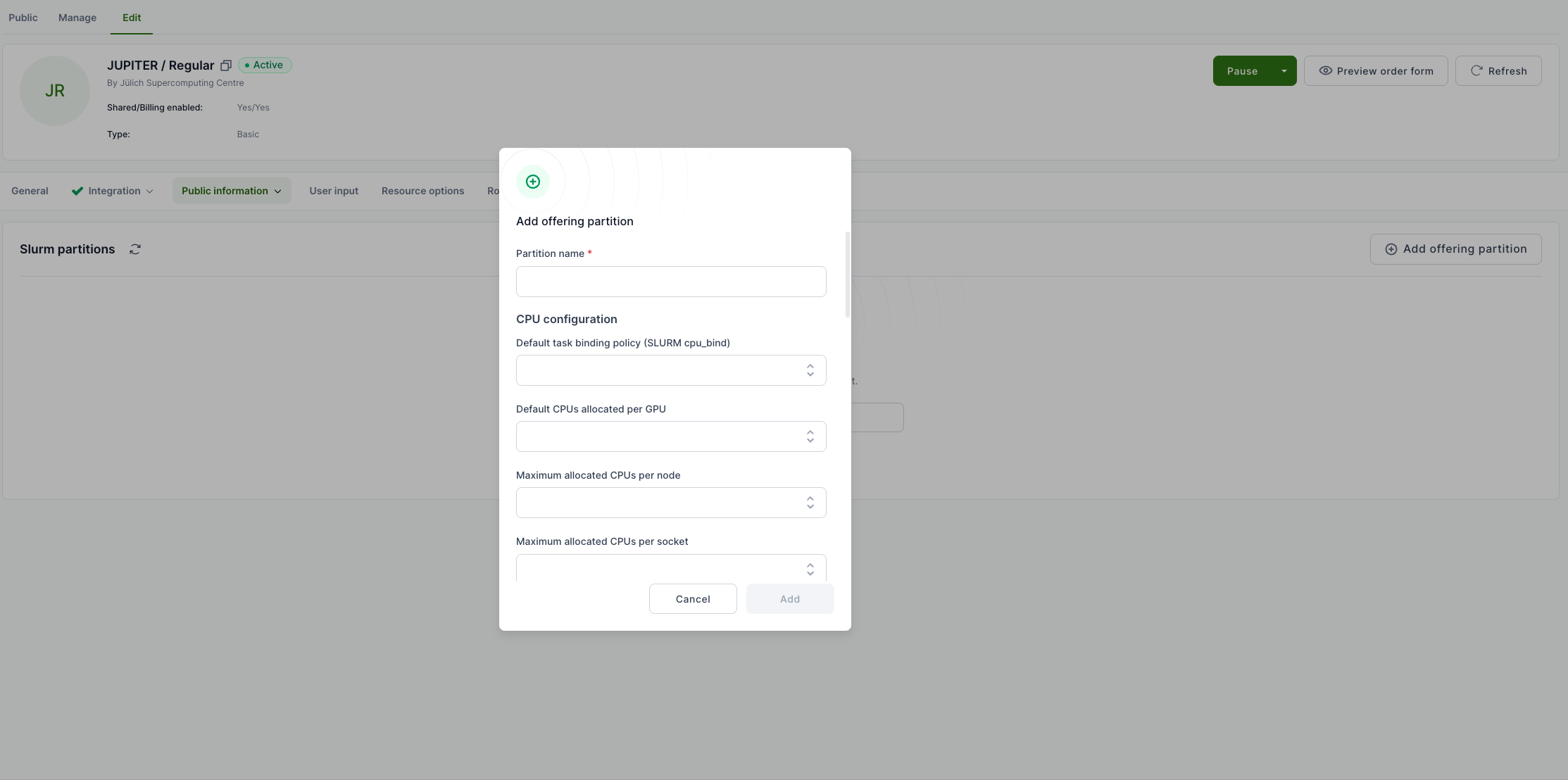
This opens the offering edit page, where all offering-related information can be updated. To add/update offering partitions:
- Select Public information -> Slurm partitions from the workspace menu and click Add offering partition from the left.
- Choose a name for the partition and then fill in the shown form.
- If all set, click Add.
More information about that is available on Waldur documentation site.
Software catalogs
The software catalog system allows marketplace offerings to expose large collections of scientific and HPC software packages from external catalogs like EESSI. Instead of manually tracking individual software installations, offerings can reference comprehensive software catalogs with thousands of packages.
To configure a software catalog:
- Log in to EFP Allocations and select your organisation and then the Service provider dashboard from the top.
- Then Marketplace -> Offerings, select the offering you want to update and then Edit from the top.
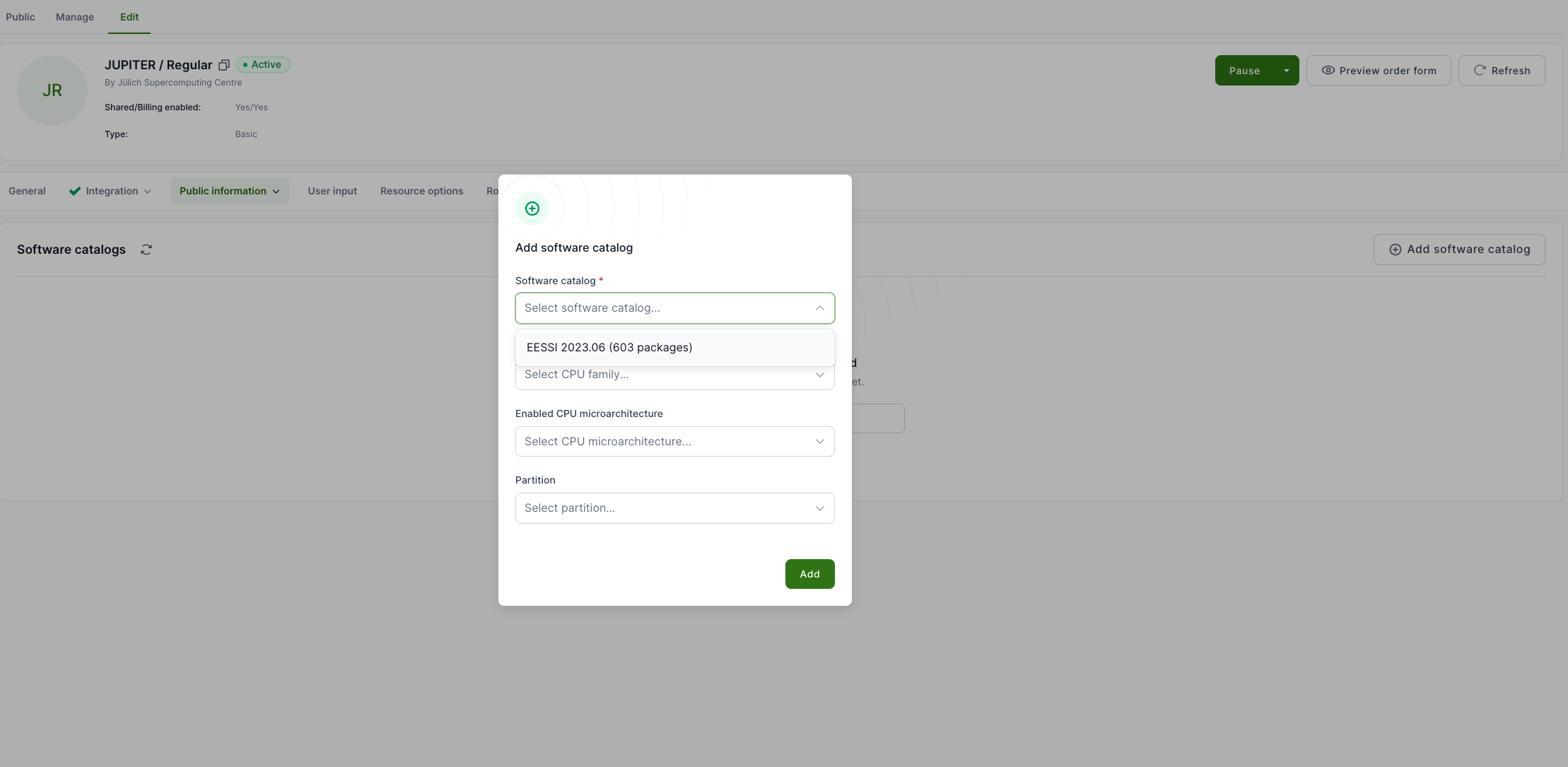
This opens the offering edit page, where all offering-related information can be updated. To add/update software catalogs:
- Select Public information -> Software catalogs from the workspace menu and click Add software catalog from the left.
- Select an available catalog and configure additional fields if needed. In this step, you can also connect available software to a specific partition.
- If all set, click Add.
More information about that is available on Waldur documentation site.